



















Category: Blog

  • react-native-spotlight-tour

    React Native Spotlight Tour

    All Contributors

    CI Release NPM version NPM downloads NPM license GitHub Release Date Known Vulnerabilities

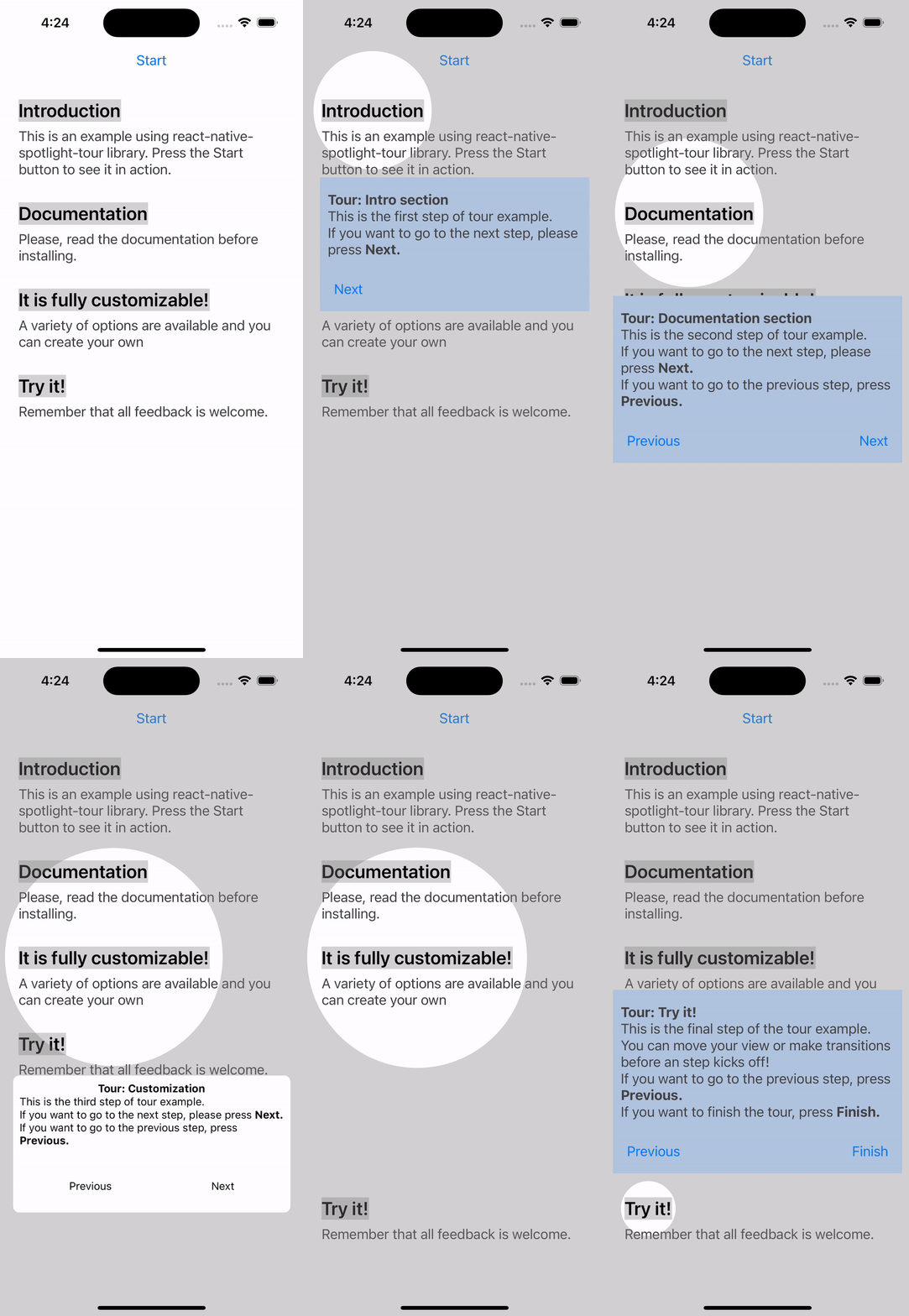
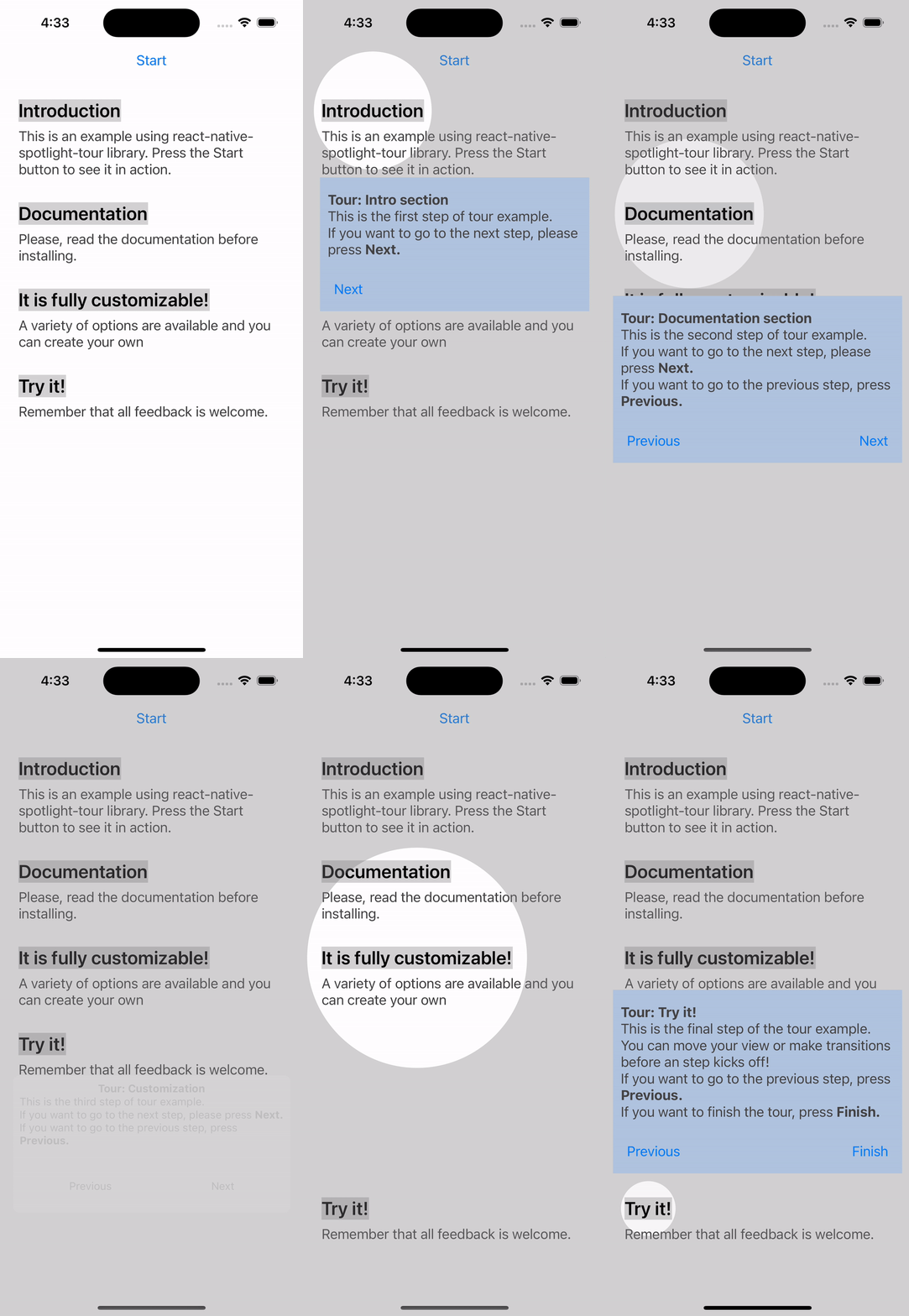
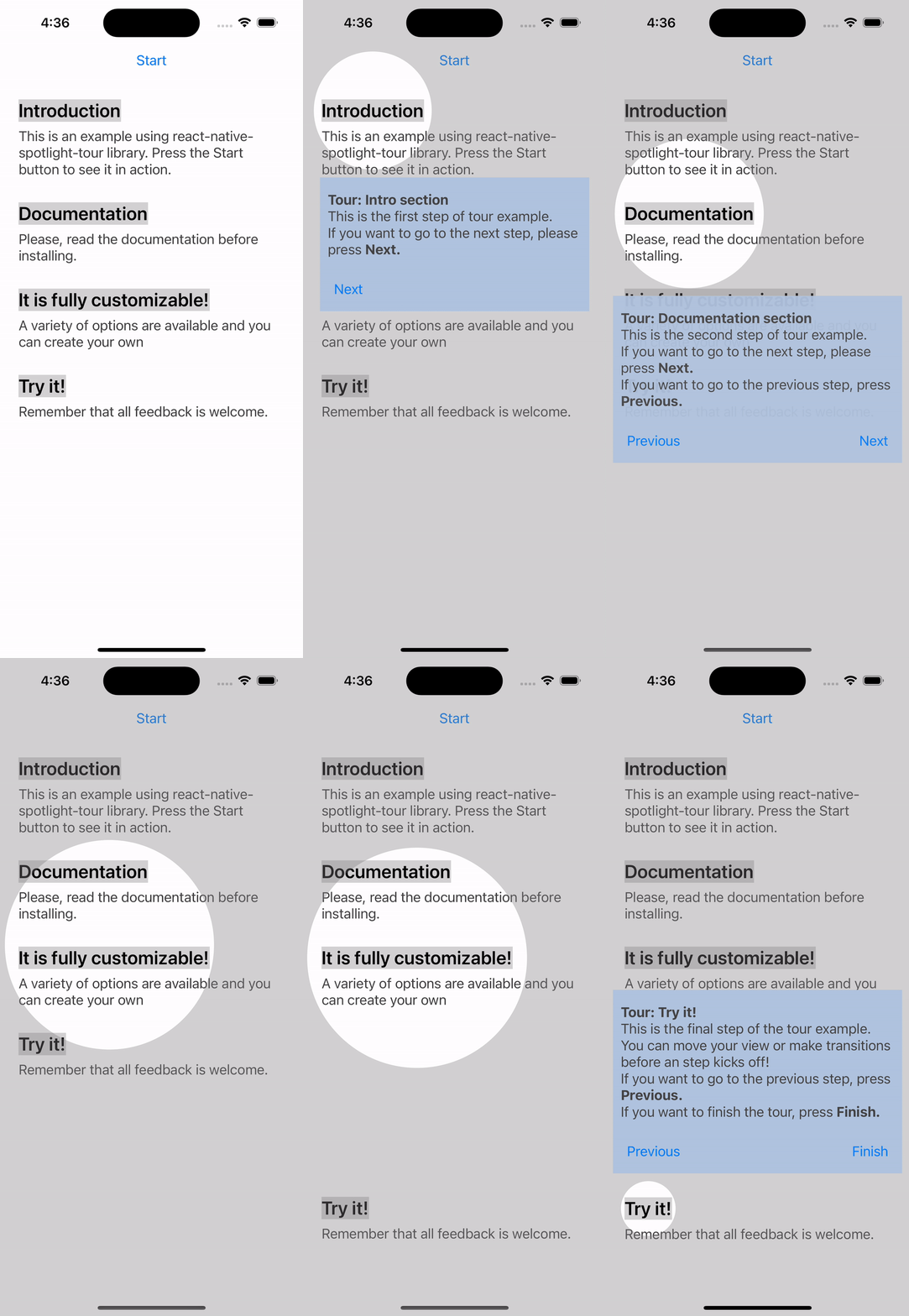
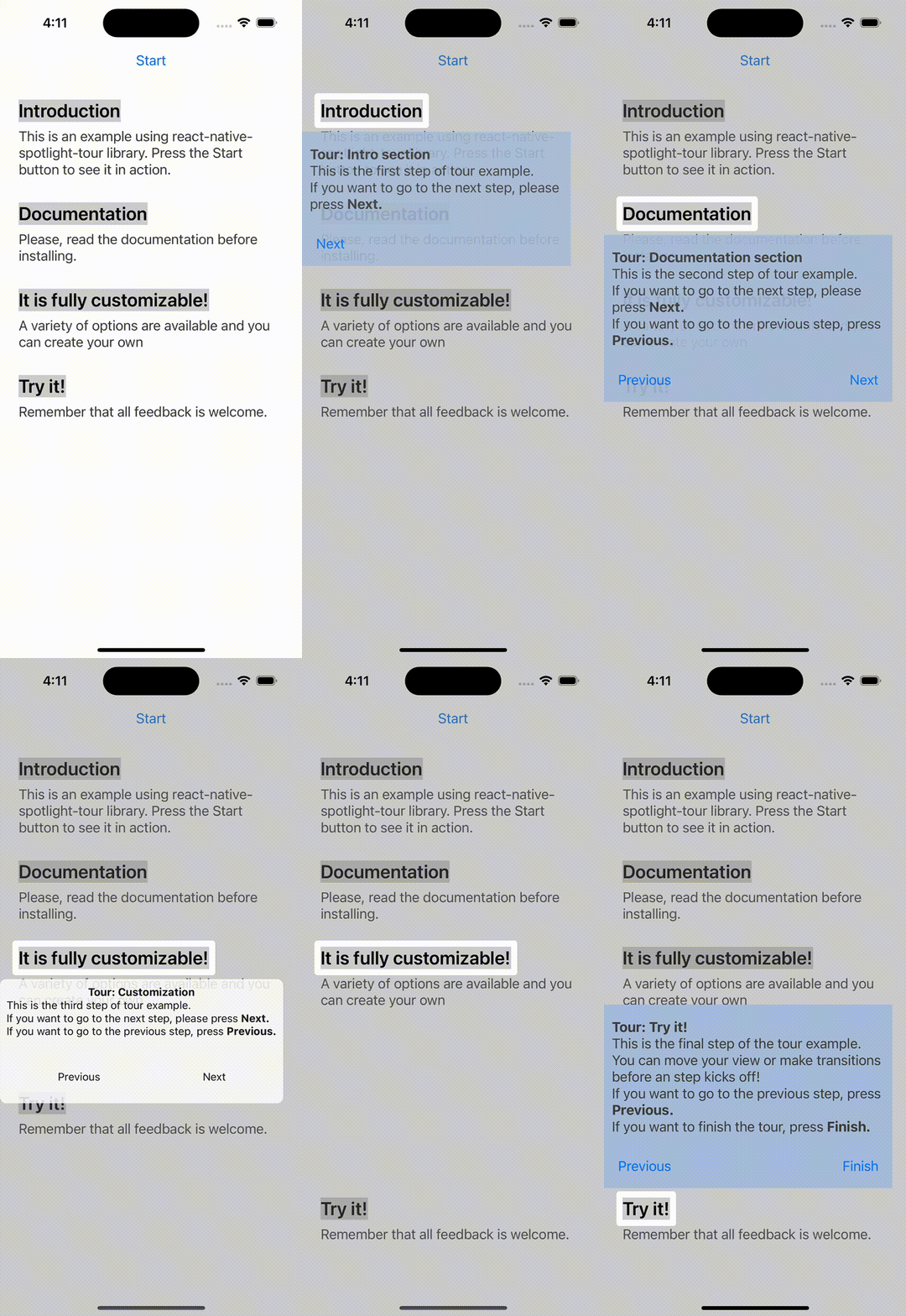
    react-native-spotlight-tour is a simple and intuitive library for React Native (Android, iOS, and Web compatible). It uses Floating UI under the hood in order to handle elements positioning, it re-exports all floating-ui middlewares to be configured in the tour. It also allows you to implement a highly customizable tour feature with an awesome spotlight effect. This library handles animations at the native level and is perfect for the following:

    • Guiding users on how to use your application
    • Showing an introduction to your users

    spotlight-bounce-gif spotlight-fade-gif spotlight-slide-gif spotlight-rect-gif

    Requirements

    Install

    With npm:

    npm install react-native-spotlight-tour

    With yarn:

    yarn add react-native-spotlight-tour

    🚨 Breaking changes: v2 to v3

    This major update brings a few fixes, some great new features, and some breaking changes. These are some highlight you’ll need to consider while upgrading from v2 to v3:

    • The package has been renamed from @stackbuilders/react-native-spotlight-tour to just react-native-spotlight-tour
      • Don’t worry, this library is still developed and maintained by the Stack Builders Inc. team!
      • Remove the former package from your dependencies and use the command described in the Install section
      • Rename any import from the previous name to use just react-native-spotlight-tour instead
    • Tooltip positioning was refactored
      • Props related to the tooltip position were removed from SpotlightTourProvider and the TourStep object.
        • Both Align and Position enums were removed
        • Both alignTo and position props were removed
      • We now delegate the positioning to FloatingUI, so you can use the floatingProps prop to configure its global behavior or granularly on each step.
      • Middleware functions are re-exported from @floating-ui/react-native to react-native-spotlight-tour.
      • You may not need to do changes on floatingProps since the default behavior is very similar to v2

    Usage

    To be able to use the tour, you’ll need to wrap everything around a SpotlightTourProvider. This provider component will also give you access to a hook to retrieve the SpotlightTour context, which gives information and fine control over the tour.

    import { Button, Text, View } from "react-native";
    import {
      AttachStep,
      SpotlightTourProvider,
      TourStep,
      flip,
      offset,
      shift,
    } from "react-native-spotlight-tour";
    
    const mySteps: TourStep[] = [
      // ...setup the steps
    ];
    
    return (
      <SpotlightTourProvider
        steps={mySteps}
        overlayColor={"gray"}
        overlayOpacity={0.36}
        // This configurations will apply to all steps
        floatingProps={{
          middleware:[offset(5), shift(), flip()],
          placement: "bottom",
        }}
      >
        {({ start }) => (
          <>
            <Button title="Start" onPress={start} />
    
            <View>
              <AttachStep index={0}>
                <Text>Introduction</Text>
              </AttachStep>
    
              <Text>
                This is an example using the spotlight-tour library.
                Press the Start button to see it in action.
              </Text>
            </View>
    
            <View>
              <AttachStep index={1}>
                <Text>Documentation</Text>
              </AttachStep>
              <DescriptionText>
                Please, read the documentation before installing.
              </DescriptionText>
            </View>
          </>
        )};
      </SpotlightTourProvider>
    );

    Floating-UI props can be defined in the <SpotlightTourProvider/> and this will be applied to all tour steps. If no configuration is given it will take a default with the next values: middlewares: [flip(), offset(4), shift()] and placement: "bottom".

    The tour requires an array of steps to be configured, which will map directly to each <AttachStep /> index. Bellow is a complete example of a TourStep array:

    import { Button, Text, View } from "react-native";
    import {
      Align,
      TourStep,
      useSpotlightTour
    } from "react-native-spotlight-tour";
    
    const mySteps: TourStep[] = [{
      // This configurations will apply just for this step
      floatingProps:{
        middleware: [offset(0), shift(), flip()],
        placement: "right",
      },
      render: ({ next }) => (
        <View>
          <Text>This is the first step of tour!</Text>
          <Button title="Next" onPress={next} />
        </View>
      )
    }, {
      before: () => {
        return DataService.fetchData()
          .then(setData);
      },
      render: () => {
        // You can also use the hook inside the step component!
        const { previous, stop } = useSpotlightTour();
    
        return (
          <View>
            <Text>This is the first step of tour!</Text>
            <Button title="Previous" onPress={previous} />
            <Button title="Stop" onPress={stop} />
          </View>
        );
      }
    }];

    Floating-UI props can be defined in each step for a custom configuration. If no floating configuration is specified in the step it will take the one defined in the <SpotlightTourProvider/>.

    You can also find a complete example here.

    Built-in Helper Components

    You can take advantage of the built-in customizable components. For example, our TourBox component can be used as a tooltip container for each step.

    import { Text } from "react-native";
    import { Align, TourBox, TourStep } from "react-native-spotlight-tour";
    
    const tourSteps: TourStep[] = [{
        render: props => (
          <TourBox
            title="Tour: Customization"
            titleStyle={{
              fontFamily: 'Roboto',
              color: '#90EE90',
              fontWeight: 'bold'
            }}
            backText="Previous"
            nextText="Next"
            {...props}
          >
            <Text>
              {"This is the third step of tour example.\n"}
              {"If you want to go to the next step, please press "}<BoldText>{"Next.\n"}</BoldText>
              {"If you want to go to the previous step, press "}<BoldText>{"Previous.\n"}</BoldText>
            </Text>
          </TourBox>
        ),
      }];

    Tour customization

    The SpotlightTourProvider also allows you to customize the overlay through the overlayColor and overlayOpacity props.

    import { AttachStep, SpotlightTourProvider, TourStep } from "react-native-spotlight-tour";
    
    const mySteps: TourStep[] = [
      // ...
    ];
    
    return (
      <SpotlightTourProvider steps={mySteps} overlayColor={"gray"} overlayOpacity={0.36}>
        {({ start }) => (
          <>
          {/* ... */}
          </>
        )};
      </SpotlightTourProvider>
    );

    Besides above customizations, you can also define the transition animation see motion and the behavior when the user presses the backdrop see onBackdropPress. Otherwise if you wish to make them different for an specific step you could override this properties in the TourStep configuration.

    import { Button, Text, View } from "react-native";
    import {
      Align
      AttachStep,
      SpotlightTourProvider,
      TourStep,
      TourBox
    } from "react-native-spotlight-tour";
    
    const tourSteps: TourStep[] = [{
        motion: "fade",
        onBackdropPress: "stop",
        render: props => (
          <TourBox
            title="Tour: Customization"
            backText="Previous"
            nextText="Next"
            {...props}
          >
            <Text>
              {"This is the first step of tour example.\n"}
              {"If you want to go to the next step, please press "}<BoldText>{"Next.\n"}</BoldText>
              {"If you want to go to the previous step, press "}<BoldText>{"Previous.\n"}</BoldText>
            </Text>
          </TourBox>
        ),
      }];
    
    return (
      <SpotlightTourProvider
        steps={tourSteps}
        overlayColor={"gray"}
        overlayOpacity={0.36}
        onBackdropPress="continue"
        motion="bounce"
      >
        {({ start }) => (
          <>
          <Button title="Start" onPress={start} />
    
           <View>
              <AttachStep index={0}>
                <Text>Introduction</Text>
              </AttachStep>
    
              <Text>
                This is an example using the spotlight-tour library.
                Press the Start button to see it in action.
              </Text>
            </View>
          </>
        )};
      </SpotlightTourProvider>
    );

    API Reference

    To view all the types, options, and props, please check the complete API Reference documentation.

    Contributing

    Do you want to contribute to this project? Please take a look at our contributing guideline to know how you can help us build it.


    Stack Builders Check out our libraries | Join our team

    Contributors ✨

    Thanks goes to these wonderful people (emoji key):
    Jose Luis Leon
    Jose Luis Leon

    💻 ⚠️ 📖 🚇 🚧 👀
    Sebastián Estrella
    Sebastián Estrella

    🚇
    Angie Rojas
    Angie Rojas

    💻 📖
    Fernanda Andrade
    Fernanda Andrade

    🚇 ⚠️
    Steven Cuasqui
    Steven Cuasqui

    📖
    Alexander Mejía
    Alexander Mejía

    💻
    Carolina López
    Carolina López

    💻 💡
    cmarcag
    cmarcag

    ⚠️
    Ricardo Arrobo
    Ricardo Arrobo

    💻 📖
    Mohammad Abkal
    Mohammad Abkal

    📖
    Alexander Pokhil
    Alexander Pokhil

    💻
    Alejandro Vivanco
    Alejandro Vivanco

    💻 👀
    Wellington Mendoza
    Wellington Mendoza

    👀
    Christian Samaniego
    Christian Samaniego

    👀
    beKool.sh
    beKool.sh

    📖
    Alexander Pokhil
    Alexander Pokhil

    💻
    Ravan Scafi
    Ravan Scafi

    💻
    Andres Perez
    Andres Perez

    💻
    David Baldassari
    David Baldassari

    💻
    Alberto Mucarsel
    Alberto Mucarsel

    🚇
    Add your contributions

    This project follows the all-contributors specification. Contributions of any kind welcome!

    License

    MIT, see the LICENSE file.

    Visit original content creator repository
  • lumen-app-email

    conjoon/lumen-app-email MIT Tests

    Backend service for IMAP/SMTP email messaging.

    What is lumen-app-email?

    conjoon/lumen-app-email is a standalone PHP🐘 application built with Lumen. It provides a backend for Email messaging according to https://github.com/conjoon/rest-api-description and serves endpoints for reading, writing and sending email messages with IMAP/SMTP.

    lumen-app-email has minimal footprint and is easy to install.

    Installation

    $ composer create-project conjoon/lumen-app-email htdocs "1.*" 

    Please refer to the official documentation of lumen-app-email for further information on installation and configuration.

    Features

    lumen-app-email follows a service oriented approach. Services are easily replaceable with the help of upfront DI configurations and related bindings.

    Use lumen-app-email, if you…

    • need a fully functional middleware for communicating with IMAP / SMTP servers
    • want to provide webmail solutions with various authentication methods, such as
      • domain-specific sign-in to IMAP accounts, orchestrated by the server
      • connecting to IMAP accounts solely configured by the users
    • are looking for an email messaging solution with minimal footprint that’s easy to distribute
    • require a headless, service oriented standalone application in your infrastructure that can also be run frontend agnostic

    API Examples

    # Return a list of available MailAccounts for the requesting client
    GET /MailAccounts HTTP/1.1
    Content-Type: application/json
    Authorization: Basic Y29uam9vbjpIZWxsb1dvcmxk
    Host: hostname
    
    # Return the envelope data of the first 50 MessageItems w/o previewText of the INBOX mailbox
    # for the MailAccount identified by "gmail"
    GET /MailAccounts/gmail/MailFolders/INBOX/MessageItems?start=0&limit=50&attributes=*,previewText HTTP/1.1
    Content-Type: application/json
    Authorization: Basic Y29uam9vbjpIZWxsb1dvcmxk
    Host: hostname
    
    # Return the email identified with the uid 4356 of the INBOX mailbox for the MailAccount identified by "gmail"
    GET /MailAccounts/gmail/MailFolders/INBOX/MessageItems/4356 HTTP/1.1
    Content-Type: application/json
    Authorization: Basic Y29uam9vbjpIZWxsb1dvcmxk
    Host: hostname

    Backend API documentation


    For the list of endpoints this service provides, please refer to the OpenApi-documentation of rest-api-email, available as OpenAPI documentation at conjoon.stoplight.io

    Additional Notes

    Official Documentation

    The official documentation can be found at the project page for conjoon. This documentation is in line with the offical project page.

    WIP

    lumen-app-email is a work in progress. We are constantly improving the API and strive for a RESTful implementation. You can follow us on Github for updates related to this and other related projects.

    Composer 2.0 – Pear/Horde vows

    As of v1.0.1, php-lib-conjoon no longer requires Composer 1.* for installation. For Composer 2.*-compatibility, php-lib-conjoon relies on the following private composer package repository:

    https://horde-satis.maintaina.com
    

    This repository is mentioned in THIS package’s composer.json This repository is also mentioned in the composer.json-file of horde/horde_deployment.

    Visit original content creator repository
  • soundwave

    soundwave

    Tests for a smooth Bezier curve visualizer for Rainmeter

    1.0>1906092154+8: Initial Release

    Important: If any changes to the variables are made, you must run the Auto-Configuration Program to compile and apply them.

    Soundwave is a test for producing a visualizer in the form of smoothly connected Bezier curves.

    Skins:

    Visualizer (Soundwave\main.ini)
    Key object that is used to display the audio spectrum. The context menu includes the ability to change the variables file (var.inc) and run the Auto-Configuration Program.

    Song Information (Soundwave\songname\sec.ini)
    Basic secondary object that displays the artist and song title.
    Note: If only the song title is available, only it is displayed. If the song title is unavailable, nothing is displayed even if the artist name is given.

    Auto-Configuration Program (Soundwave\autoconfig\program.ini)
    Must be ran for a second after variables are changed.

    Variables:

    (Only these may be changed, others that may be included do nothing)

    xconst Width modifier. (default 25)
    yconst Height modifier. (default 80)
    endsize Start and end “flat line” length modifier. (default 80)
    player Music player to retrieve song information from. (default Spotify)

    Other Visualizer Options:

    The visualizer’s refresh rate can be changed at the top of its file (default 50 ms (20 Hz))
    The visualizer’s gradient can be changed at the bottom of its file.
    The number of frequency bands is hard-coded with dependencies and it may be difficult to change.

    How It Works

    1. The values for each frequency band are found normally with AudioLevel.
    2. Each value is translated into a y-value and “virtual points” the curve must pass are created.
    3. The gradient of the tangent at each point is found by averaging the angle between a given point and the previous point, and the given point and the next point.
    4. The control points of the individual Bezier curves are found using the gradient in (3).
    5. The line is produced by joining the individual Bezier curves in a Shape meter.

    Visit original content creator repository

  • mobsf-cli

    mobsf-cli

    mobsf-cli is a wrapper for the Mobile Security Framework (MobSF) REST-API. Created especially for Continuous
    Integration (CI) / Continuous Delivery (CD) stages. You can use only use one command to upload a file, auto start scan,
    save reports, check scores.

    Mobile Security Framework (MobSF) is an automated,
    all-in-one mobile application (Android/iOS/Windows) pen-testing, malware analysis and security assessment framework
    capable of performing static and dynamic analysis.

    Releases

    Go to releases page and fetch latest release.

    Install (linux x86_64)

    wget https://github.com/wojciech-zurek/mobsf-cli/releases/download/v0.1.0/mobsf-cli-x86_64-unknown-linux-gnu.tar.gz 
    tar -xvf mobsf-cli-x86_64-unknown-linux-gnu.tar.gz
    sudo mv mobsf-cli /usr/local/bin/mobsf-cli
    sudo chmod +x /usr/local/bin/mobsf-cli

    Manual installation

    git clone git@github.com:wojciech-zurek/mobsf-cli.git
    cd mobsf-cli
    cargo build --release
    sudo cp target/release/mobsf-cli /usr/local/bin/mobsf-cli
    mobsf-cli --help

    Usage

    mobsf-cli 0.1.0
    Wojciech Zurek <mail@wojciechzurek.eu>
    mobsf-cli app
    
    USAGE:
        mobsf-cli [OPTIONS] <SUBCOMMAND>
    
    OPTIONS:
        -a <api_key>        Api key/token (overrides MOBSF_API_KEY env)
        -h, --help          Print help information
        -s <server>         Server, example: http://localhost:8000 (overrides MOBSF_SERVER env)
        -V, --version       Print version information
    
    SUBCOMMANDS:
        ci        For CI/CD stages. Upload a file, auto start scan, save reports, check scores.
        delete    Delete scan.
        help      Print this message or the help of the given subcommand(s)
        play      Upload a file and auto start scan.
        report    Get report.
        scan      Scan a file.
        scans     Display recent scans.
        source    View source files.
        upload    Upload a file.

    Example usage

    # Upload a file to MobSF server
    mobsf-cli upload path/to/example.apk
    
    # Scan a file
    mobsf-cli scan apk example.apk <hash>
    
    # Upload a file and auto start scan
    mobsf-cli play path/to/example.apk
    
    # Fetch scan result (report)
    mobsf-cli report pdf <hash>
    mobsf-cli report json <hash>
    
    # Display recent scans
    mobsf-cli scans
    
    # Delete scan result
    mobsf-cli delete <hash>

    CI/CD usage

    mobsf-cli ci combines:

    • upload a file,
    • start scan,
    • generate reports in pdf and json format,
    • check scan scores (cvss, security score, trackers) and rise an error if scores are wrong

    # help
    mobsf-cli ci --help
    
    mobsf-cli-ci 
    For CI/CD stages. Upload a file, auto start scan, save reports, check scores.
    
    USAGE:
        mobsf-cli ci [OPTIONS] -p <path_to_save> <file_path>
    
    ARGS:
        <file_path>    
    
    OPTIONS:
        -a <api_key>             Api key/token (overrides MOBSF_API_KEY env)
        -c <cvss>                Above this score rise a cvss error. 0.0-10.0 [default: 3.9]
        -h, --help               Print help information
        -p <path_to_save>        Path to directory to save reports (pdf and json).
        -r                       Rescan a file
        -s <server>              Server, example: http://localhost:8000 (overrides MOBSF_SERVER env)
        -t <trackers>            Above this score rise a trackers error. 0-407 [default: 0]
        -u <security>            Below this score rise a security error. 0-100 [default: 71]


    mobsf-cli ci path/to/example.apk -p path/to/save/reports -c 5.5 -u 48 -t 2
    ...
    Validating scan scores...
    Error: CVSS score [6.6] is to high. Max: 5.5!

    Server and api key

    You can set server and api key:

    • as command options (higher order),
      • -a <api_key>
      • -s <server>
    • as environment variables (lower order)

    Environment variables

    You can set env for api and server config:

    • MOBSF_API_KEY – for api key,
    • MOBSF_SERVER – for server
    MOBSF_API_KEY="ed...c4" MOBSF_SERVER="https://su...com:8000" mobsf-cli scans

    Visit original content creator repository

  • wardriver-pwnagotchi-plugin

    🛜 Wardriver Pwnagotchi plugin

    Discord server GitHub Release GitHub issues GitHub License

    A complete plugin for wardriving on your pwnagotchi. It saves all networks seen by bettercap, not only the ones whose handshakes has been collected. The plugin works on Evilsocket and Jayofelony images.

    Join our crew and start sailing with us! 🏴‍☠️

    Open https://wigle.net/stats#groupstats, search for “The crew of the Black Pearl” and click “join

    ✨ Features

    • Log every network seen with its position
    • Support GPS coordinates retrieval from Bettercap, GPSD and Pwndroid application
    • Automatic and manual upload of wardriving sessions to WiGLE
    • Web UI with lots of information
    • Export single wardriving session in CSV
    • Label and icon on display with status information

    🚀 Installation

    Important

    This plugin require a GPS module attached to your pwnagotchi to work, or your pwnagotchi needs to be connected via BT to your Android phone with Pwndroid application installed.

    Depending on the GPS method choosen, you’ll also need the gps or gpsdeasy or pwndroid plugin enabled. For more info about GPS configuration, check the section below.

    1. Login inside your pwnagotchi using SSH:
    ssh pi@10.0.0.2
    1. Add the plugin repository to your config.toml file and reboot your pwnagotchi:
    main.custom_plugins_repos = [
        # ...
        "https://github.com/cyberartemio/wardriver-pwnagotchi-plugin/archive/main.zip"
    ]
    1. Install the plugin:
    sudo pwnagotchi plugins update && \
    sudo pwnagotchi plugins install wardriver
    1. Edit your configuration file (/etc/pwnagotchi/config.toml) and add the following:
    # Enable the plugin
    main.plugins.wardriver.enabled = true
    
    # Path where SQLite db will be saved
    main.plugins.wardriver.path = "/root/wardriver"
    
    # Enable UI status text
    main.plugins.wardriver.ui.enabled = true
    # Enable UI icon
    main.plugins.wardriver.ui.icon = true
    # Set to true if black background, false if white background
    main.plugins.wardriver.ui.icon_reverse = false
    
    # Position of UI status text
    main.plugins.wardriver.ui.position.x = 7
    main.plugins.wardriver.ui.position.y = 95
    
    # Enable WiGLE automatic file uploading
    main.plugins.wardriver.wigle.enabled = true
    
    # WiGLE API key (encoded)
    main.plugins.wardriver.wigle.api_key = "xyz..."
    # Enable commercial use of your reported data
    main.plugins.wardriver.wigle.donate = false
    # OPTIONAL: networks whitelist aka don't log these networks
    main.plugins.wardriver.whitelist = [
        "network-1",
        "network-2"
    ]
    # NOTE: SSIDs in main.whitelist will always be ignored
    
    # GPS configuration
    main.plugins.wardriver.gps.method = "bettercap" # or "gpsd" for gpsd or "pwndroid" for Pwndroid app
    1. Restart daemon service:
    sudo systemctl restart pwnagotchi

    Done! Now the plugin is installed and is working.

    Please note that during execution the plugin will download all the missing assets from GitHub if internet is available. For this reason, the first time you run the plugin you’ll not see any icon on your pwnagotchi’s screen.

    📍 GPS Configuration

    Starting from version v2.3, Wardriver supports different methods to retrieve the GPS position. Currently it supports:

    • Bettercap: getting the position directly from Bettercap’s agent
    • GPSD: getting the position from GPSD daemon
    • Pwndroid: getting the position from pwndroid Android companion application

    Check one of the below section to understand how to configure each method for GPS position.

    🥷 Bettercap

    If you are using the default gps plugin that add the GPS data to Bettercap, pick and use this method. This is the default and the fallback choice, if you don’t specify something else in the config.toml.

    # ...
    main.plugins.wardriver.gps.method = "bettercap"
    # ...

    🛰️ GPSD

    If you are using Rai’s gpsd-easy or Fmatray’s gpsd-ng, pick and use this method. This should be used if you have installed gpsd on your pwnagotchi and if it is running as a daemon.

    # ...
    main.plugins.wardriver.gps.method = "gpsd"
    
    # OPTIONAL: if the gpsd daemon is running on another host, specify here the IP address.
    # By default, localhost is used
    main.plugins.wardriver.gps.host = "127.0.0.1"
    
    # OPTIONAL: if the gpsd daemon is running on another host, specify here the port number.
    # By default, 2947 is used
    main.plugins.wardriver.gps.port = 2947
    # ...

    📱 Pwndroid

    Important

    Be sure to have websockets pip library installed. Run sudo apt install python3-websockets on your pwnagotchi.

    If you don’t have a GPS device connected to your pwnagotchi, but you want to get the position from your Android phone, then pick this method. You should have installed the Jayofelony’s Pwndroid companion application.

    # ...
    main.plugins.wardriver.gps.method = "pwndroid"
    
    # OPTIONAL: add the IP address of your phone. This should be changed ONLY if you have changed the BT network addresses.
    main.plugins.wardriver.gps.host = "192.168.44.1"
    
    # OPTIONAL: add the port number where the Pwndroid websocket is listening on. This shouldn't be changed, unless the
    # application is updated with a different configuration. By default, 8080 is used
    main.plugins.wardriver.gps.port = 8080
    # ...

    🗺️ Wigle configuration

    In order to be able to upload your discovered networks to WiGLE, you need to register a valid API key for your account. Follow these steps to get your key:

    1. Open https://wigle.net/account and login using your WiGLE account
    2. Click on Show my token
    3. Copy the value for Encoded for use: textbox
    4. Add the value inside main.plugins.wardriver.wigle.api_key in /etc/pwnagotchi/config.toml file

    You are good to go. You can test if the key is working by opening the wardriver web page and clicking on Stats tab. If you get your WiGLE profile with your stats, the API key is working fine.

    🔥 Upgrade

    If you have installed the plugin following the method described in the previous section, you can upgrade the plugin version with:

    sudo pwnagotchi plugins update && \
    sudo pwnagotchi plugins upgrade wardriver

    Then restart your pwnagotchi with:

    sudo systemctl restart pwnagotchi

    Otherwise, if you have installed the plugin manually just download the new version from GitHub and replace the old file on your pwnagotchi.

    👾 Usage

    Once configured, the plugin works autonomously and you don’t have to do anything. Check the sections below to learn more about how it works.

    🖥️ Web UI

    All the operations are done through the plugin’s Web UI. Inside of it, you can see the current wardriving session statistics, global statistics (including your WiGLE profile), all networks seen by your pwnagotchi and also plot the networks on map. You can upload automatically the sessions on WiGLE when internet is available, or upload them manually through the Web UI.

    You can reach the Web UI by opening http://<pwnagotchi ip>:8080/plugins/wardriver in your browser.

    🚗 Wardriving

    Everytime bettercap refresh the access points list (normally every 2 minutes more or less), the plugin will log the new networks seen along with the latitude, longitude and altitude. Each time the service is restarted a new session will be created. If you have enabled it, the plugin will display the total number of networks of the current session on the pwnagotchi display.

    If you don’t want some networks to be logged, you can add the SSID inside wardriver.whitelist array in the config. Wardriver does not report networks whose SSID is contained within the local and global whitelist.

    Note: the SSIDs inside the main.whitelist array will always be ignored.

    🌐 WiGLE upload

    If you have enabled it, once internet is available, the plugin will upload all previous session files on WiGLE. Please note that the current session will not be uploaded as it is considered still in progress. Don’t worry, it’ll be uploaded the next time your pwnagotchi starts with internet connection.

    If you just want to upload sessions to WiGLE manually you can still do it. All you have to do, is configuring your API key and use the corresponding button in the sessions tab of the Web UI. You can also download the CSV file locally for a specific session.

    ❤️ Contribution

    If you need help or you want to suggest new ideas, you can open an issue here or you can join my Discord server using this invite.

    If you want to contribute, you can fork the project and then open a pull request.

    🥇 Credits

    • Rai68’s gpsd-easy pwnagotchi plugin for the GPSD integration
    • Jayofelony’s pwndroid pwnagotchi plugin for the Pwndroid integration
    Visit original content creator repository
  • automated-trading

    Update 2018: This project has been put on hold until Trading View released web hook support, as the SMS notifications were not open-ended and as such would expire, which would cause you to lose money because trades would cease if you forgot to renew the SMS hook, which was too manually fragile to justify maintaining.

    Update 2019: Trading View has now released web hook support. An issue has been created for renewing this project accordingly.

    In the meantime consider using Crypto-ML instead.

    Automated Trading

    Overview

    This project is the automated trading setup used by Benjamin Lupton, codenamed baltrade, which already accomplishes:

    1. Trading View strategies are saved into the tradingview directory
    2. Trading View strategies are added to the the Trading View interface, to see how they perform via Trading View’s backtesting feature
    3. Trading View alerts are created via the study that accompanies the strategy (as Trading View strategies do not support alerts)
    4. Use Trading View’s Server-Side SMS Alert feature to send the alert to a Twilio number
    5. Use the Twilio number to send the message via Web Hook to a Firebase Function that parses it
    6. Use the Firebase Function to act upon the alert message, with the usual intention of placing a trade via one or more intended Exchange APIs

    That is to say, this is already a working solution for placing automated trades with various exchanges via Trading View strategies.

    With enough effort, it will also accomplish:

    1. Storage of trade data for historical reporting of profit and loss against strategies and securities
    2. Storage of market data for more advanced strategies that can be operated independently of Trading View
    3. An app that allows users to register, browse strategy performance, and connect their portfolios to the strategies
    4. A marketplace for acquiring and renting strategies (%/$ on profits/month/trade)
    5. Public/Private user profiles, automated trade performance, and portfolio size

    Difficulties with this vision are:

    1. Trading View offers no API for
      1. injecting strategies against securities
      2. injecting alerts on those strategies
    2. In order for Trading View to successfully send an alert, it requires a perfect balance of:
      1. Correct strategy and study setup, including correct input options
      2. Correct chart and change duration setup
      3. Correct connection between the strategy and the chart for correct alert setup
      4. Ensuring that none of this automation configuration changes in the process of just using trading view for everyday things
      5. A Premium Trading View plan in order to get access to their Server-Side SMS Alert feature, the only alert feature that sends alerts even when you have Trading View closed
    3. Trading View has a few unexpected features/bugs:
      1. Backtesting on Renko charts places realtime virtual trades at non-realtime prices, producing falsely optimal results
      2. valuewhen(change(series), series, ForLoopIteration) does not seem to work as expected when inside a for loop, it seems to always produce the same result
      3. There is no logging or debugging in pine script, which makes figuring out the unexpected implausible

    This would be assisted by either:

    1. Moving away from Trading View
      1. This may happen in 2018, as currently other backtesting solutions seem of alpha quality
      2. This would also allow potentially more advanced trading strategies, such as AI based ones
    2. Working with Trading View to solve the earlier issues
    3. A combination of both of the above; where this service evolves into an automated trading empire, where the strategies is a seperate empire which connects to this one, allowing any strategy service to connect to this user-facing (automated) trade placement solution

    How to help:

    1. Trading View strategies
      1. You can help me improve my current strategies
      2. You can write new strategies and add them
    2. More exchanges
      1. Feel free to add support for more exchanges, I will happily merge them
    3. User-facing app
      1. We can work together on the user facing app, that will allow users to register, add their exchanges, and view performance
    4. Review
      1. You can review what has been done and help me improve it, especially from a security perspective
    5. Investment
      1. You can help me connect a team/location/mentors/funds to build this out, make it into a product and a business, and hopefully double every user’s money while they sleep

    I am not sure open-sourcing of this is a good or bad idea, as it could be I am naive, so here are my thoughts:

    1. Bad idea:
      1. someone more familiar with big finance takes an optimal strategy stored here, and sells it to big finance making millions of dollars without me, ruining my return on investment
      2. some assumptions or code in this project could be fatally flawed, and someone decides to exploit it
    2. Neutral idea:
      1. a larger team takes the ambitions here, and makes the project happen without me — neutral return on investment, as I will still benefit from their result, even if my own investment was at a loss
      2. individuals and firms may not trust the project with their money, unless they too can inspect its operations, which open-source provides – however, they could just fork it, and setup their own product based off it, using their big brand name as leverage
    3. Good idea:
      1. someone more familiar with big finance notices the potential in the project, and reaches out to help make it happen, offering expertise and/or funding and/or team suggestions
      2. others also interested in this area help flesh this out, where one’s expertise in one area compliments another’s naiveity – this could be accomplished without open-source, but to do it without open-source, I’ll need to hire people, of which, I’ll need to find people to hire (first problem), and then to hire them (second problem)
      3. some assumptions or code in this project could be fatally flawed, and someone else can spot it before it becomes more of a liability
      4. the progress of strategies and implementation can be shared with support groups and other interested parties, to faciliate improvements and collaboration

    Resources. Email. Meeting.

    Installation

    See the INSTALL.md guide for how to setup this project yourself. Once there is a user-facing app, this will not be needed.

    Disclaimer

    This software is provided “as is”, without warranty of any kind, express or implied, including but not limited to the warranties of merchantability, fitness for a particular purpose and non-infringement. In no event shall the authors, copyright holders, or Bevry be liable for any claim, damages or other liability, whether in an action of contract, tort or otherwise, arising from, out of or in connection with the software or the use or other dealings in the software.

    Use the software at your own risk. You are responsible for your own money. Past performance is not necessarily indicative of future results.

    The authors and all affiliates assume no responsibility for your trading results.

    License

    Copyright (C) 2017+ Benjamin Lupton b@lupton.cc

    Software

    This program is free software: you can redistribute it and/or modify
    it under the terms of the GNU Affero General Public License as
    published by the Free Software Foundation, either version 3 of the
    License, or (at your option) any later version.

    This program is distributed in the hope that it will be useful,
    but WITHOUT ANY WARRANTY; without even the implied warranty of
    MERCHANTABILITY or FITNESS FOR A PARTICULAR PURPOSE. See the
    GNU Affero General Public License for more details.

    You should have received a copy of the GNU Affero General Public License
    along with this program. If not, see https://www.gnu.org/licenses/.

    Contributions

    Contributors certify their contributions adhere to the Developer Certificate or Origin.

    Visit original content creator repository

  • lwm2m-client-rtl8710

    lwm2m-client-rtl8710

    C++ implementation of lwm2m protocol client for use with RTL8710 MCU based devices.

    Compiling/Flashing

    Project built on PlatformIO core. Refer to PlatformIO documentation for detailed instructions on core installation and project configuration at: http://docs.platformio.org/en/latest/

    Currently the project uses a custom PlatformIO platform, developed for Linux and Windows systems.

    To compile project run:

    platformio run
    

    This command will download all libraries, tools, frameworks and platforms necessary to build, flash and debug the project.


    To upload project run:

    platformio run -t upload
    

    Most RTL8710 based development boards include a CMSIS-DAP interface for device flashing and debugging, so proper driver installation might be needed.

    Instructions on DAP firmware installation can be found here.

    Lwm2m

    The application uses the lwm2m protocol, and includes examples of how to implement GPIO, PWM, ADC, I2C and SPI features using lwm2m objects.

    To choose between building SPI, I2C or ADC example uncomment the appropriate ‘#define’ – ‘SPI_MASTER_OBJ’, ‘I2C_MASTER_OBJ’ or ‘ADC_OBJ’. Only one of these objects can be used at the same time.

    GPIO

    Refer to lwm2m object id3312

    • Write 1/0 to resource ‘OnOff’ to set GPIO pin PA12 to either high or low.

    PWM

    Object id3306

    • Resource ‘OnOff’ turns PWM output on or off for pin PA_0.
    • ‘Dimmer’ sets the duty cycle. Can be an integer value [0-100].
    • ‘OnTime’ lets you specify a time in micro seconds that you want PWM to be on.

    ADC

    Object id3202

    • Read resource ‘AnalogInputCurrentValue’ to measure voltage on pin PA19.

    SPI

    Object id26241 (look for header file in ‘include’ directory)

    • ‘Frequency’ specifies the SPI clock frequency.
    • ‘Mode’ specifies SPI mode.
    • ‘Buffer’ – data to be sent to SPI slave devices. Read this resource to get last received data from slave devices.
    • ‘Length’ – received data length.
    • ‘Transaction’ – once you have specified a data buffer, execute this resource to start SPI write command. ‘Buffer’ resource gets overwritten by data received from slaves.

    I2C

    Object id26241

    • ‘Frequency’ specifies the I2C clock frequency.
    • ‘Slave_address’ specifies I2C slave address.
    • ‘Buffer’ – data to be sent to I2C slave devices. After read operation this resource is overwritten with data received from slaves. If you want read only operation, then buffer must be empty.
    • ‘Length’ – if value is larger than 0 specifies number of bytes to be read, else specifies write only operation.
    • ‘Transaction’ – execute this resource to start I2C write, read or write/read operation (depends on previously defined conditions).

    Configuration

    Once powered on the device connects to an access point and server configured inside its flash memory. Configuration is done with HTTP requests while the device is in access point mode. To switch device into AP mode pull UART_LOG_TX pin to ground for at least three seconds, on most developments boards this can be done by holding the ‘UART DOWNLOAD’ button.


    Once connected to device AP, you can view the current configuration by sending a GET request to “http://[GATEWAY_ADDR]:80/ap”, ex.:

    curl http://192.168.4.1:80/ap
    

    To keep current configuration send a GET request to “http://[GATEWAY_ADDR]:80/keep”, ex.:

    curl http://192.168.4.1:80/keep
    

    To change current configuration send POST request to “http://[GATEWAY_ADDR]:80/ap”, with JSON payload, ex.:

    curl http://192.168.4.1:80/ap -d '{"ssid":"ap_ssid","pass":"ap_password","client_name":"example_client","server_address":"coap://192.168.0.1:5555"}' -H 'Content-type:application/json'
    

    Controling device

    Lwm2m functionality was tested out using example lwm2m rest server located at: https://github.com/8devices/wakaama/tree/master-rest/examples/rest-server

    Documentation on server usage and client control API is found at: https://github.com/8devices/wakaama/blob/master-rest/examples/rest-server/RESTAPI.md

    For easier GUI based device control it is recommended to use Node-RED programming tool: https://nodered.org/

    Lwm2m protocol compatible nodes for the Node-RED programming utility can be found at: https://github.com/8devices/node-red-contrib-lesley

    Debugging

    in development

    License

    • All code in this project is provided under The MIT License (MIT)

    • Project uses sdk-ameba-v4.0b framework provided by Realtek

    • Project uses WakaamaNode library which is under The MIT License (MIT), Copyright (c) 2016 Openhab-Nodes

    • WakaamaNode library in turn depends on Wakaama which is under the Eclipse Public License – v2.0

    Visit original content creator repository

  • xstate-test-toolbox

    @smartive/xstate-test-toolbox

    This package contains the helper createTestPlans which can be used with xstate and @xstate/test.

    createTestPlans

    This function adds the meta-property to every state and a test if it is defined within tests. (see in example) Beside that it generates all possible test simple path plans for all possible combinations of your guards.

    ⚠️ Attention: Your statechart must consist of only string references to guards, actions and services otherwise the testing will break.

    Example

    // The following snippet does not include all needed imports and code it is intended
    // to give you a starting point and an idea how the `createTestPlans`-function can be used.
    
    import { createTestPlans, StatesTestFunctions } from '@smartive/xstate-test-toolbox';
    import { FetchInterceptor, mockHeaders, mockResponse, RequestCallCountMock } from '@smartive/testcafe-utils';
    import { TestEventsConfig } from '@xstate/test/lib/types';
    import { RequestMock } from 'testcafe';
    import { Context, machine } from './machine-under-test';
    // ...
    
    type TestContext = {
      t: TestController,
      plan: string,
      path: string
    };
    
    const fetchInterceptor = new FetchInterceptor({
      fetchPeople: /.+swapi\.dev.+\/people\/$/,
      fetchMore: /.+swapi\.dev.+\/people\/\?page=.+/,
      searchPeople: /.+swapi\.dev.+\/people\/\?search=.+/,
    });
    
    const getRequestMocks = (plan: string, path: string): object[] => {
      const peopleUrl = /.+swapi\.dev.+\/people\/.*/
      if (
        plan.includes('NoResults') ||
        (plan.includes('Searching') && path.includes('NoResults'))
      ) {
        return [
          RequestMock()
            .onRequestTo(peopleUrl)
            .respond(empty, 200, mockHeaders),
        ];
      }
    
      if (plan.includes('Error')) {
        switch (path) {
          case 'Pending → error.platform.fetchPeople':
            return [
              RequestMock().onRequestTo(peopleUrl).respond({}, 400, mockHeaders),
            ];
          case 'Pending → done.invoke.fetchPeople → Idle → END_REACHED → LoadingMore → error.platform.fetchMore':
            return [
              new RequestCallCountMock(peopleUrl, [
                { body: mockResponse(peoples) },
                { body: mockResponse({}, 400) },
              ]),
            ];
          case 'Pending → done.invoke.fetchPeople → NoResults → QUERY_DISPATCHED → Searching → error.platform.searchPeople':
            return [
              RequestMock()
                .onRequestTo(fetchInterceptor.interceptUrls.searchPeople)
                .respond({}, 400, mockHeaders),
              RequestMock()
                .onRequestTo(peopleUrl)
                .respond(empty, 200, mockHeaders),
            ];
          case 'Pending → done.invoke.fetchPeople → Idle → QUERY_DISPATCHED → Searching → error.platform.searchPeople':
            return [
              RequestMock()
                .onRequestTo(fetchInterceptor.interceptUrls.searchPeople)
                .respond({}, 400, mockHeaders),
            ];
        }
      }
    
      return [];
    };
    
    const tests: StatesTestFunctions<Context, TestContext> = {
      Pending: ({ t }) => t.expect(page.spinner.exists).ok(),
      Idle: ({ t }) => t.expect(page.listItem.count).gt(0),
      LoadingMore: ({ t }) => t.expect(page.listItem.count).gt(1).expect(page.spinner.exists).ok(),
      Error: ({ t }) => t.expect(page.error.exists).ok(),
      NoResults: ({ t }) => t.expect(page.notify.exists).ok(),
      Searching: ({ t }) => t.expect(page.search.value).contains('luke').expect(page.spinner.exists).ok(),
    };
    
    const testEvents: TestEventsConfig<TestContext> = {
      END_REACHED: ({ t }) => t.hover(page.listItem.nth(9), { speed: 0.8 }),
      QUERY_DISPATCHED: ({ t }) => t.typeText(page.search, 'luke', { speed: 0.8 }),
      'done.invoke.fetchPeople': fetchInterceptor.resolve('fetchPeople'),
      'error.platform.fetchPeople': fetchInterceptor.resolve('fetchPeople'),
      'error.platform.fetchMore': fetchInterceptor.resolve('fetchMore'),
      'error.platform.searchPeople': fetchInterceptor.resolve('searchPeople'),
    };
    
    createTestPlans({
      machine,
      tests,
      testEvents,
      // add logLevel: LogLevel.INFO for some output which plans/paths are generated
    }).forEach(
      ({ description: plan, paths }) => {
        fixture(plan).page(`http://localhost:3000/peoples`);
    
        paths.forEach(({ test: run, description: path }) => {
          test
            .clientScripts([fetchInterceptor.clientScript()])
            .requestHooks(getRequestMocks(plan, path))(`via ${path} ⬏`, (t) => run({ plan, path, t }));
        });
      }
    );

    Visit original content creator repository